Wiring View
Commands
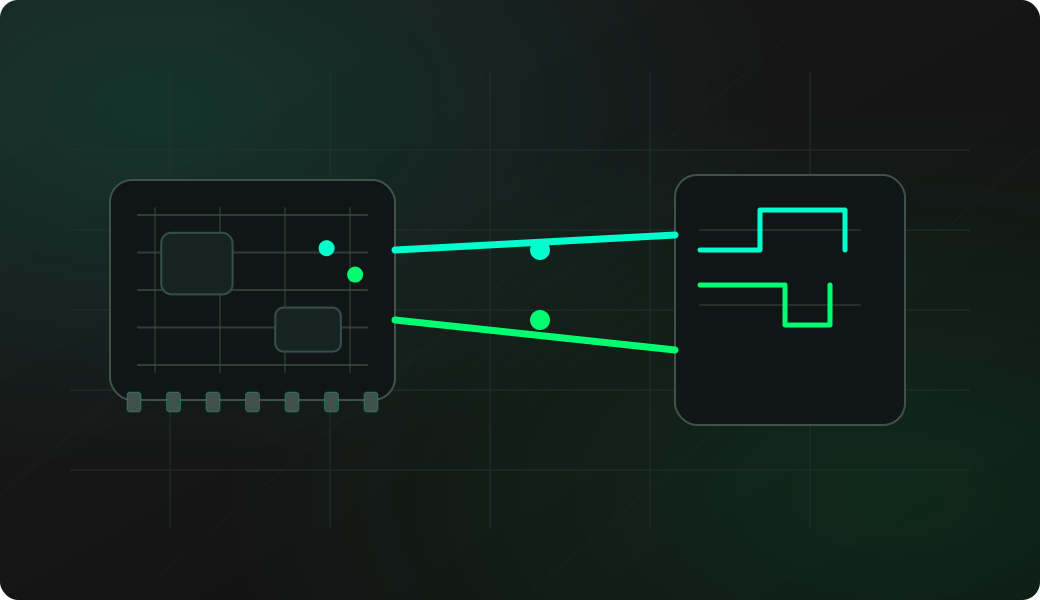
Run the commands below after selecting the right Bit Pirate mode and confirming the wiring.
Result
What success looks like
A detected pair gives you pins to verify with OpenOCD or a normal debugger. A failure does not prove SWD is absent; reset, power state and locks can matter.
Troubleshooting
- Target not powered or held in reset.
- No common ground.
- Wrong candidate pin set.
- Target debug interface disabled or locked.
SWD pinout scan FAQ
What does SWD scan look for?
It tries candidate GPIO pairs to find SWDIO and SWCLK on a target that exposes an ARM-style Serial Wire Debug interface.
Why should SWD usually be tried before JTAG on ARM boards?
Many modern ARM microcontrollers expose SWD with only two signal pins, so a targeted SWD scan can be faster than a full four-signal JTAG search.
What does an SWD scan result give me next?
A scan result gives candidate SWDIO, SWCLK and reset-related wiring to test with a debugger workflow. It is a mapping aid, not a guarantee that the target will allow debug access.