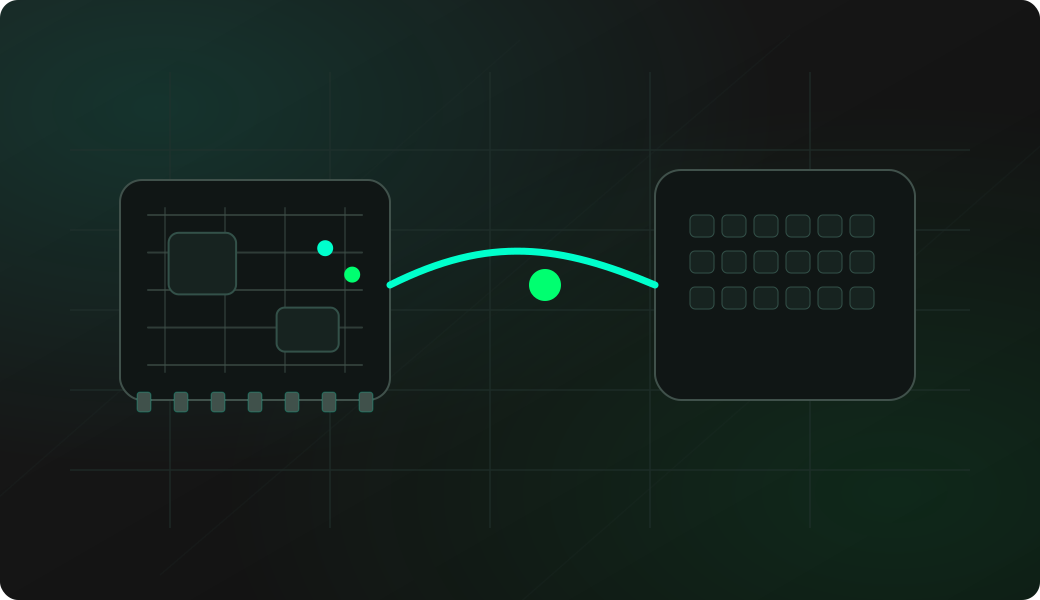
Wiring View
Commands
Run the typed commands first. If the command opens an interactive shell, select the named action from the shell menu instead of treating it as another CLI command.
Result
What success looks like
Keep tests small and visible. Use a text editor for keyboard output and a safe desktop area for mouse movement.
Troubleshooting
- Testing on a host you do not control.
- Expecting HID on boards without native USB support.
- Sending mouse movement while the cursor is over dangerous UI.
- Forgetting that bridge keyboard mode sends terminal keystrokes live.
USB HID keyboard and mouse FAQ
When should I prefer one-shot keyboard text over bridge mode?
Use one-shot text for predictable, scripted input such as a short test string. Use bridge mode only when you intentionally want live terminal keystrokes forwarded as HID reports.
Why are mouse movement values limited?
USB HID relative mouse reports use small signed deltas. The firmware caps movement values to the supported range so one command cannot encode an invalid movement report.
How do I avoid unsafe HID tests?
Use your own host, keep focus on a harmless text editor or input tester, and avoid privileged terminals or destructive UI before sending keyboard or mouse events.