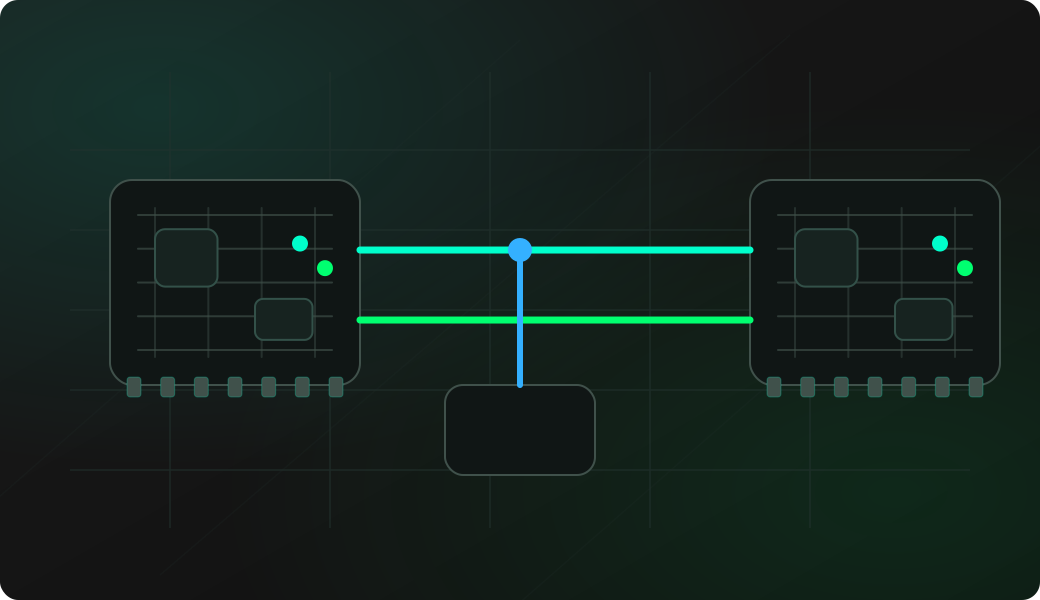
Wiring View
Commands
Use sniff for one pin or scan when you are trying to find active lines.
Result
What success looks like
If transitions appear, the pin is active. Use the logic analyzer adapter next when you need accurate timing or decoded protocols.
Troubleshooting
- The line is idle and needs a pull-up or pull-down.
- You are watching the wrong GPIO.
- The signal is faster than the CLI output is useful for.
- No shared ground with the target device.
GPIO edge sniffing FAQ
When is CLI edge sniffing useful?
Use it when you only need to know whether a line toggles and in which direction. It is faster than setting up a full capture for a first-pass signal check.
What kind of signal is CLI edge sniffing meant for?
CLI edge sniffing is best for human-scale transitions, button lines, interrupts and low-rate activity. Faster protocols are better handled with the logic analyzer workflow.
When should I stop using sniff and capture logic instead?
Switch to a logic analyzer when you need timestamps, pulse widths, bus decoding, multiple channels or repeatable timing evidence.